Free rent payment tracker
A rent payment tracker is a one-page grid of who paid rent each month, with a row for each unit and a column for each month. This free tracker is a spreadsheet for Excel and Google Sheets. It colors each month paid in full, partial, or unpaid, and adds up what each tenant owes. There is a printable version too.
- No account needed
- Opens in Excel and Google Sheets
Rent payment tracker example
Here are four units from a filled-in tracker, September to November 2026, as it looked on November 8. Rent is due on the 1st. The names and amounts are made up.
| Unit and tenant | Monthly rent | September | October | November | Owed now |
|---|---|---|---|---|---|
| Unit 1A, Rivera | $1,200.00 | $1,200.00 Paid | $1,200.00 Paid | $1,200.00 Paid | $0.00 |
| Unit 1B, Chen | $1,050.00 | $1,050.00 Paid | $800.00 Partial | $1,050.00 Paid | $250.00 |
| Unit 2A, Okafor | $1,350.00 | $1,350.00 Paid | $1,350.00 Paid | $0.00 Not paid | $1,350.00 |
| Unit 2B, Novak | $950.00 | $950.00 Paid | $950.00 Paid | $500.00 Partial | $450.00 |
| All four units | $4,550.00 expected | $4,550.00 received | $4,300.00 received, $250.00 short | $2,750.00 received, $1,800.00 short | $2,050.00 |
Owed now is the rent due so far minus everything paid. Chen paid November in full and still owes $250, because the short October carries forward. The download has all twelve months, with expected, received, and short totals under each one and a Balance column that works out what each unit owes. Its gray example rows are these four units.
Download the tracker (Excel)Printable rent payment tracker
The PDF is one landscape page for a year of rent: a row for each unit and a box for each month from January to December. Print one sheet per property.
Tick it or write the amount
In the box for the month the rent pays for, tick it when the rent came in full. Otherwise write the amount you received and circle it, so a short month stands out.
Write V for an empty month
Write V in a month the unit had no tenant, so nobody reads the empty box as unpaid.
Keep the Owed column current
When you check the sheet each month, write what each tenant owes in total: the rent for the months due so far, minus what came in.
What's on the page
At the top are lines for the year, the property, the rent due date, and the last day of the grace period. Below them are two filled-in example rows, 16 blank rows, and a total line.
Open the tracker in Excel, Google Sheets, or Numbers
The tracker is an Excel workbook (.xlsx) with two tabs: Tracker, and How to use. The formulas and color rules use only functions that both Excel and Google Sheets have.
Excel
Open the file in Excel. If a yellow bar says Protected View, choose Enable Editing. Everything works as it is, including the colors and the pinned headings.
Google Sheets
Go to sheets.google.com and open a blank spreadsheet. Choose File > Import, select Upload, and pick the tracker file. Set Import location to Replace spreadsheet, then choose Import data. Sheets keeps it as a Google Sheet in your Drive, with its formulas and colors.
Numbers
On a Mac, open Numbers, choose File > Open, and pick the tracker file. The totals come across. If the month colors don't, the Status column still says Paid, Partial, or Not paid for the current month.
Any other program
The CSV file has the same columns and the four example rows as plain values, without formulas or colors.
Download the CSV
How to use the rent payment tracker
The steps are the same in Excel and Google Sheets.
Set the year
Type the year at the top of the Tracker tab, then select the four gray example rows and delete them. Months due fills itself in from today's date, so a month turns red only once its rent is due.
Add a row for each unit
Type the unit, the tenant, and the monthly rent. Two tenants on one lease share a row. The tracker has 25 rows; for more, insert rows above the last unit row so the totals include them.
Type each payment under the month it pays for
Type the amount you received, even when it is less than the rent. When two payments cover one month, type
=800+250in the box so you can still see both amounts.Mark empty months
Type vacant in any month the unit had no tenant. That month is left out of Due so far, so the balance stays right.
Read it after the grace period
Green is paid in full, yellow is partial, and red is a month that is due with nothing in it. Balance shows what each tenant owes for the year, short months included, and a tenant who paid ahead shows a credit.
Match it to the bank each month
Match each amount to a deposit in your bank account, then follow up on anything red or yellow. The guide to keeping track of rent payments covers the monthly check and what to do about a partial payment.
Rent payment tracker questions
Is a rent payment tracker the same as a ledger?
No. The tracker is one page for all your tenants, with a box for each month, so you can see who hasn't paid this month. A ledger is one tenant's full history: each charge, payment, and late fee on its own dated line, with a running balance.
Use the tracker to see who is behind. Keep a ledger for a tenant whose account needs the detail, such as a payment plan or a dispute. The free rent ledger template has that layout.
How do I record a partial rent payment?
Type the amount you received in that month's box. The box turns yellow, and the Balance column adds the shortfall to what the tenant owes. When the rest arrives, add it to the same box: change 800 to
=800+250and the box turns green.Can one tracker cover several properties?
Yes. Start each unit name with the property, such as Oak 1A and Oak 1B, so the rows sort together. Or keep one tab per property: right-click the Tracker tab, choose Duplicate in Google Sheets or Move or Copy in Excel, then clear the units and payments on the copy. Each tab then has its own month totals.
Can I use it in Google Sheets on my phone?
Yes. Import the file into Google Sheets once from a computer, using the steps above, then open it in the Google Sheets app. Tap a month's box and type the amount. The color and the balance update, and the unit, tenant, and rent stay pinned on the left while you scroll through the months.
How Rentals369 shows who owes rent
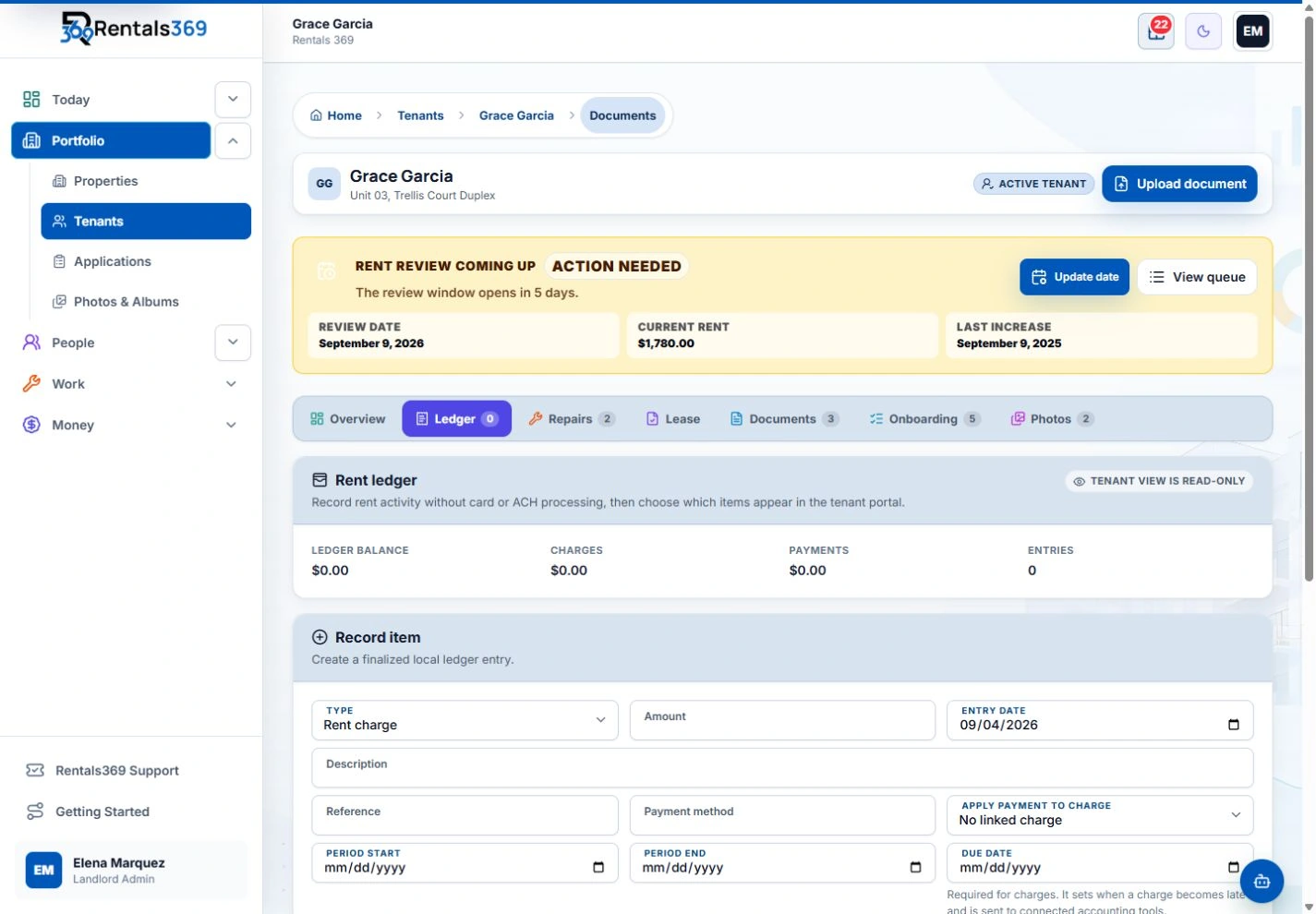
In Rentals369, each tenant has a rent ledger whose balance updates as you record charges and payments. The Delinquency Worklist totals what is overdue across your portfolio and lists the tenants who owe it.
- Create and schedule rent charges by tenant
- Record payments, with a printable receipt for any recorded payment
- Late fees you add sit on the same ledger as the charges and payments
- Once QuickBooks Online is connected, it gets a copy of each finalized rent charge, payment, and late fee
- Tenants can see their balance in their portal when you turn that on
Rentals369 does not collect rent online. You record the payments you receive.
One list shows the tenants who owe, so you skip the monthly scan of the grid.
More guides and tools
Rent ledger template
One tenant's charges, payments, and running balance, for Excel or Google Sheets.
Get the templateLate fee calculator
Work out a late fee and see whether a payment came in during the grace period.
Open the calculatorRent receipt template
Fill in a receipt for a rent payment, then print it or save it as a PDF.
Make a receiptHow to keep track of rent payments
One ledger per tenant, partial payments, late fees, receipts, and a monthly check against the bank.
Read the guide
Get your evenings back.
One plan includes everything, with no setup fee: Email Sync with suggested replies, QuickBooks sync, DocuSign for your leases, the Android app, storage with no set limit, and portals for your tenants, vendors, and owners.
$59/month for up to 3 tenants, or $49.17/month billed yearly.
No-sweat guarantee: full refund within 30 days.